
What it does
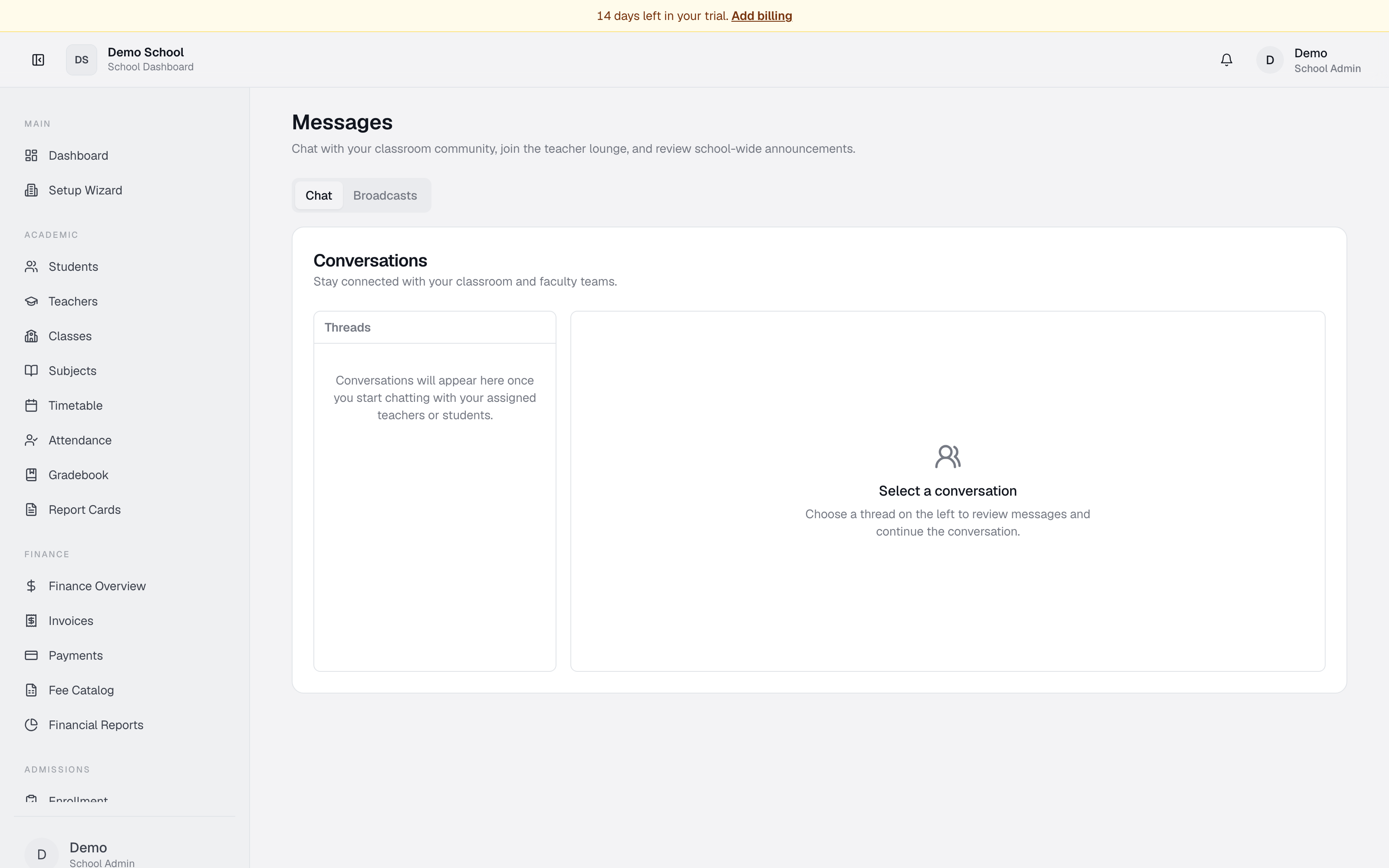
The Messages module (labeled Messages in the sidebar) lets school staff, teachers, and parents communicate in real time. Teachers can reach individual students, staff can join a shared teacher lounge, and school leaders can broadcast announcements to the entire school community.
Who uses it
- Teacher / Staff — send direct messages to students and colleagues, join the teacher lounge.
- Student — receive messages from teachers, see school-wide announcements.
- Parent — see broadcasts from the school.
- Principal / School Admin — send broadcasts and manage communication channels.
Common tasks
Start a new direct message
- Click Messages in the sidebar.
- Click the New message button (envelope with +).
- Search for a contact — teachers see students in their classes; students see assigned teachers.
- Select the contact. A new thread appears.
Send a message in a conversation
- Open the thread from the left list.
- Type your message in the input at the bottom.
- Press Send or Enter.
View the teacher lounge
Teachers and admins see a Teacher Lounge group conversation in their list. All faculty can read and post — used to coordinate schedules, share resources, and discuss operations. Created automatically the first time you visit Messages.
See a school-wide broadcast
Broadcasts appear in the Announcements tab. Each shows title, body, sender, audience (all personnel / teachers / students / a grade), and timestamp. Read-only — contact the sender if you have questions.
Send a broadcast (admin only)
- Click the Broadcast tab.
- Fill in:
- Title — short subject (e.g. "Sports Day Rescheduled").
- Message — body up to 500 characters.
- Audience — All personnel / Teachers / Students / a specific grade.
- Click Send broadcast.
Troubleshooting
- Can't start a new message — you may not have permission. Teachers can message students; students can message teachers. Parents cannot start direct messages.
- Message didn't send — check connection; reload the page.
- No teacher lounge — only teachers and admin staff see it. Refresh.
- A broadcast I sent isn't showing up — verify the audience; check that In-app messaging is Configured in Notifications.
- Got a broadcast notification but can't find the message — broadcasts appear in the Announcements tab, not regular messages.
Limits & known issues
- Direct messages show the 40 most recent threads.
- Messages can be up to 2,000 characters; broadcasts up to 500.
- Broadcasts target one audience per send (no multi-group).
- No message edit or delete yet — sends are permanent.
- The teacher lounge is shared across the entire tenant; no private group chats yet.