
What it does
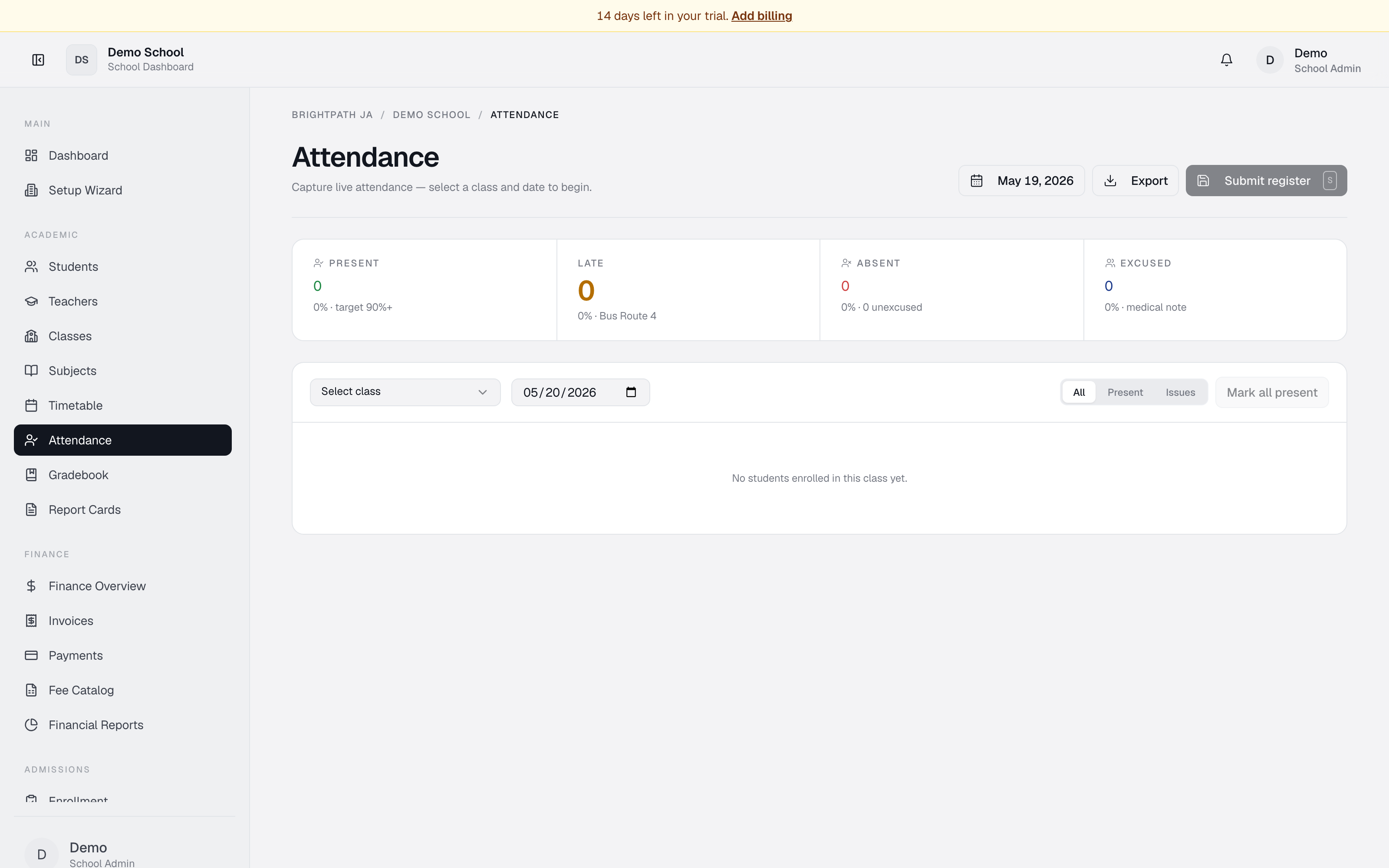
The Attendance page records which students are present, late, absent, or excused on a given day. You select a class and date, then toggle each student's status with a single click. Once the roster is marked, click Submit register to save. A summary band shows counts for each category and the overall attendance rate.
Who uses it
- Principal / Registrar — view and manage school-wide attendance.
- Teacher / Homeroom Teacher — mark attendance for assigned classes each day.
- Parent — view their child's attendance (read-only).
- Student — view their own attendance (read-only).
Common tasks
Mark attendance for a class
- Open Attendance from the sidebar.
- Select the class from the dropdown.
- Set the date using the date picker (defaults to today).
- The roster appears, sorted by surname.
Mark a student present, late, absent, or excused
In the Status column, click one of P (present), L (late), A (absent), E (excused). The button fills with colour and the overall rate updates in real time.
Mark all students present at once
Click Mark all present above the roster. Then adjust individual students who were late, absent, or excused.
Filter the roster
Use the filter tabs above the roster: All, Present, or Issues (absent + late).
Submit the register
Click Submit register in the top right. The system saves all attendance records and shows "Attendance saved."
View a past date
Click the date picker to select any date. The roster and statuses update. If no attendance has been submitted for that date, all students default to Present.
Export attendance
Click Export in the top right to download the currently selected class/date register as CSV.
Troubleshooting
- Roster is empty — either no students enrolled in the class, or no class selected. Enrol students in Students or Classes.
- Counts don't update after submitting — refresh, or switch class and back. Real-time updates can lag a few seconds.
- Submit register is disabled — choose a class with enrolled students first.
- Can't edit a past date — you can. Select any date, mark, and click Submit register.
Limits & known issues
- Attendance is recorded per class and date — you cannot mark multiple classes at once.
- A student's status defaults to Present if no record exists for the date.
- No Reason / Note field yet — absences and late marks are recorded without a reason code.
- Real-time roster refresh can lag; refresh the page if you see stale data.