
What it does
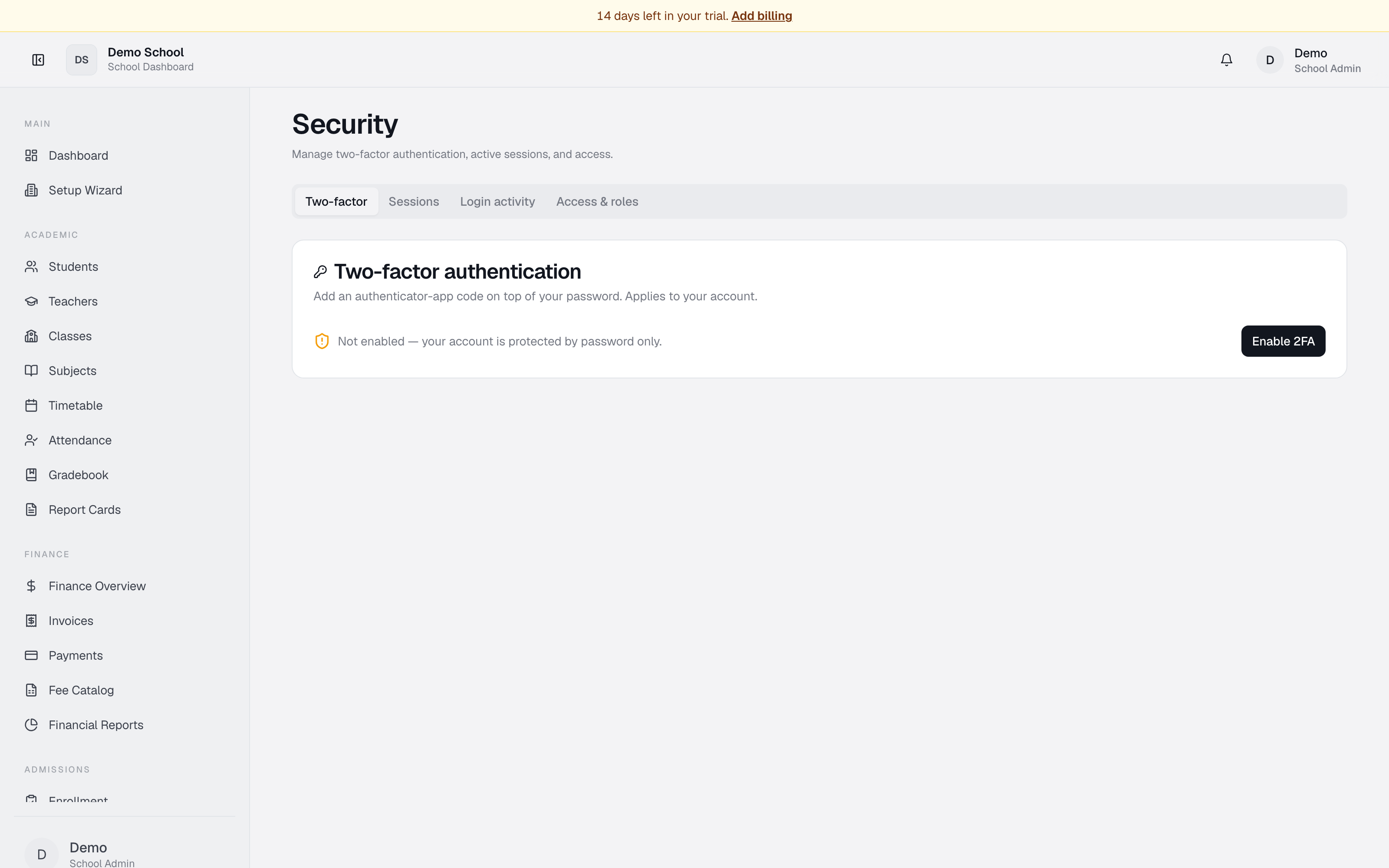
Security has four tabs to help you protect your account and understand your access:
- Two-factor — enable or disable 2FA via an authenticator app.
- Sessions — view and end all active sign-in sessions across devices.
- Login activity — review a timeline of recent logins.
- Access & roles — see your current role and which modules you can access.
Who uses it
All staff users can manage their own 2FA and sessions. Only super-admins manage 2FA for others (in Utilities).
Common tasks
Enable two-factor authentication
Go to Two-factor. Click Enable 2FA, scan the QR code with an authenticator app (Google Authenticator, Authy, Microsoft Authenticator), enter the 6-digit code, click Verify & enable.
Disable two-factor authentication
In Two-factor, click Disable and confirm.
Sign out a specific device
Click Sessions. Find the session (shows the user's name, role, sign-in time, and IP address) and click End. Revoked within ~1 minute.
View your role and access
Click Access & roles — your role, how many modules you can access, and (super_admin only) a link to Utilities.
Review recent logins
The Login activity tab shows all your account's logins — date, time, IP, active status.
Troubleshooting
- QR code not showing — refresh, click Enable 2FA again.
- 2FA code won't verify — ensure your phone's clock is correct; try a fresh 6-digit code.
- Don't see all sessions — sessions are scoped to your tenant only.
- End button disabled — session may have already logged out. Refresh.
Limits & known issues
- 2FA is app-based (TOTP) only — SMS 2FA is not supported.
- Session revocation can take up to 1 minute.
- If you lose access to your authenticator app, contact support to reset.