
What it does
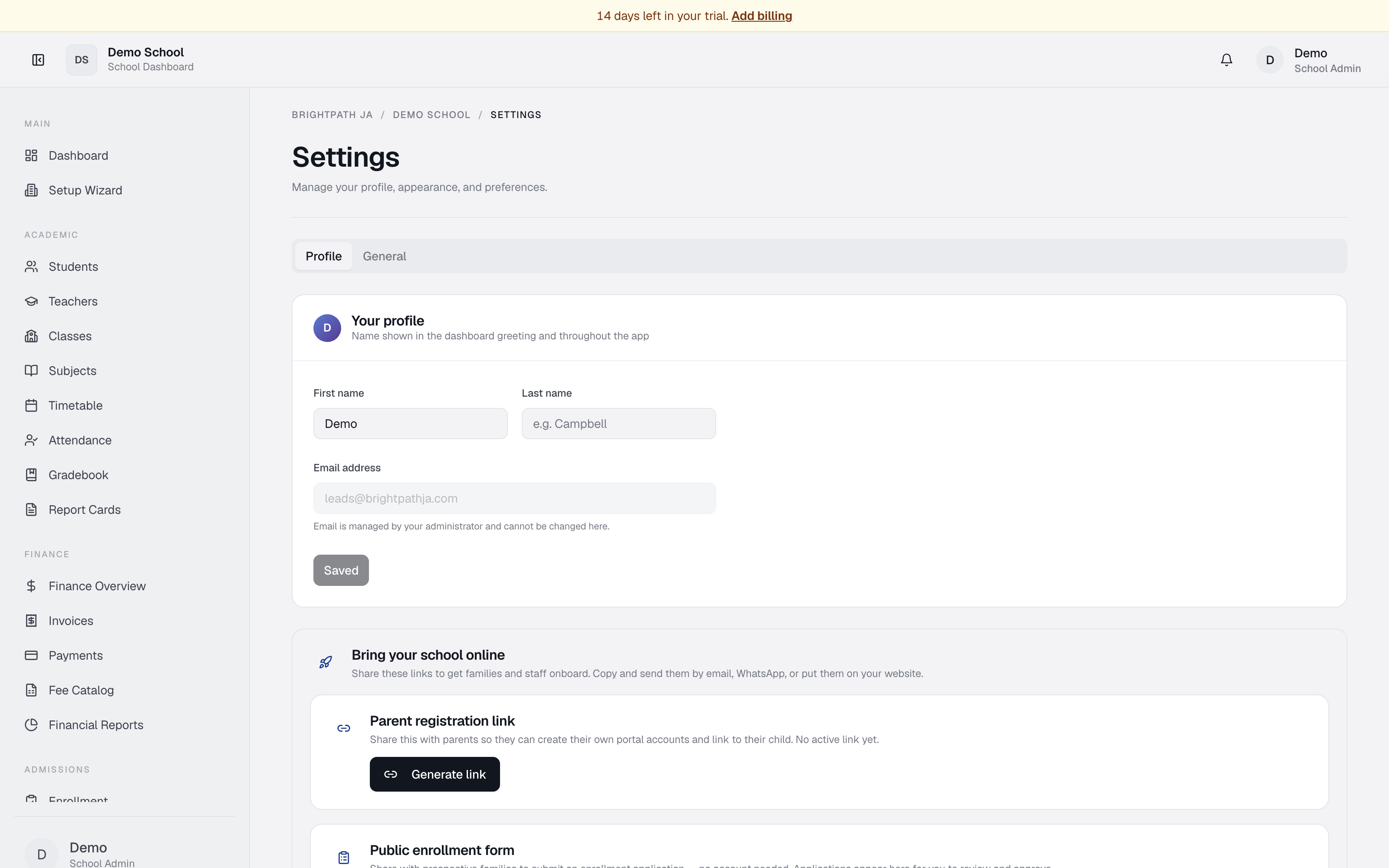
Settings is a sectioned hub. Pick a section from the left-hand list:
- Profile — update your name, photo, and personal details (everyone).
- Branding — set the school logo, colours and theme (school admins & principals).
- Plan & Billing — view the current subscription and open billing to choose a plan or manage payment (school admins & principals).
- Academic Calendar — review the academic year and term dates (school admins & principals).
Who uses it
All authenticated users can update their own Profile. The Branding, Plan & Billing, and Academic Calendar sections are visible to school admins and principals (and super admins). Other roles see only Profile.
Common tasks
Update your name or photo
Go to Profile, edit your details, click Save.
Upload your school logo
Open Branding → School logo → Upload logo (PNG, JPG, WebP, GIF or SVG, up to 5 MB), then click Save Changes. The logo appears across the school's dashboard. You can also paste an external image URL instead of uploading.
Choose or change your plan
Open Plan & Billing to see your current plan, price and renewal/trial date, then click Choose plan & manage billing to open the secure billing page (Stripe checkout, plan changes, invoices, card management).
Review term dates
Open Academic Calendar to see configured terms. Term dates are edited in the Setup Wizard.
View sharing links
Admins see Share Links at the bottom — public URLs you can copy and send (e.g. the public enrollment form, parent portal sign-in).
Troubleshooting
- Changes didn't save — check your connection and retry.
- New logo not showing — make sure you clicked Save Changes after uploading; then refresh.
- Can't see Branding / Billing — these are admin-only sections; other roles see only Profile.
Limits & known issues
- Super-admins see a notice that User Management, Security, Modules, and Tools live in Utilities.
- Existing logos uploaded earlier are stored inline and continue to work; uploading a new logo replaces them.